PDF Menu to QR Code: How To Convert It (the Right Way)
Want to turn a PDF menu into a QR code? You can do it in minutes — but a static PDF behind a code reads badly on phones and can't be updated without a reprint. This guide shows you both paths: the fast PDF-to-QR route, and the dynamic menu your guests will actually thank you for.

You have a PDF menu and you want it behind a QR code
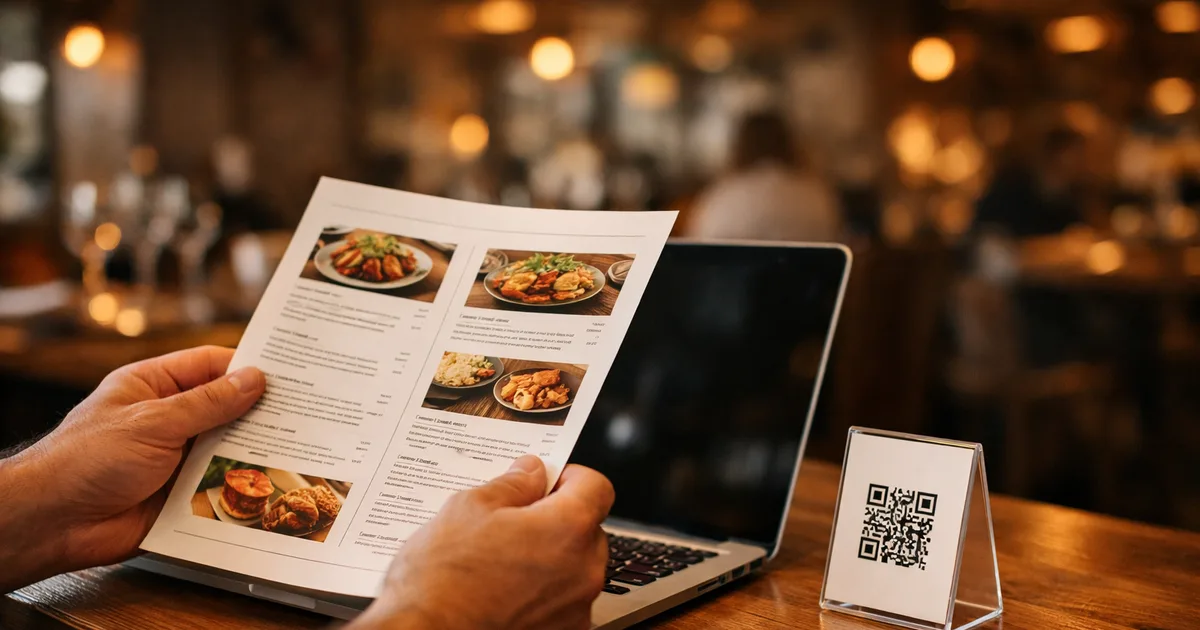
You already have your menu as a PDF. Now you want guests to scan a code at the table and see it — no app, no fuss. That’s a completely reasonable thing to want, and you can make it happen today. But before you print a single code, it’s worth knowing that how you turn that PDF into a QR code decides whether guests get a smooth menu or a frustrating one.
There are two honest paths. The fast one links your QR code straight to the PDF file. The better one uses the PDF as a starting point and turns it into a live, mobile-friendly menu — the same QR code, a far better result. This guide walks through both, so you can pick the path that fits your venue instead of finding out the hard way at Friday service.
We’ll keep it practical: how to convert a PDF menu to a QR code step by step, the static-versus-dynamic decision that trips most people up, and a clear-eyed look at what a QR code menu PDF can and can’t do for your guests.
TL;DR
- You can convert a PDF menu to a QR code in minutes with a free generator — the code points to your file.
- Use a dynamic QR code (one you can edit) so the same printed code keeps working when your menu changes; a static code is locked forever.
- A PDF behind a QR code reads badly on phones — guests pinch and zoom because PDFs are laid out for paper, not for a screen the size of a palm.
- A dynamic digital menu fixes that: mobile-first layout, instant edits, per-dish allergens, multiple languages from one code, and analytics.
- The smartest move is to use your PDF as a checklist and rebuild it as a live menu — same content, a menu guests actually enjoy.
How do you convert a PDF menu to a QR code?
To convert a PDF menu to a QR code, upload the PDF to a QR code generator (or host it at a public URL) and generate a dynamic QR code that links to it. Download the code in high resolution, print it on table tents or stickers, and test it on a phone. Use a dynamic code so you can swap the file later without reprinting.
That’s the short version, and for a one-off event it’s genuinely fine. The longer version matters because the small choices you make here — static versus dynamic, file versus live page — are exactly what decides whether this menu still works for you in three months.
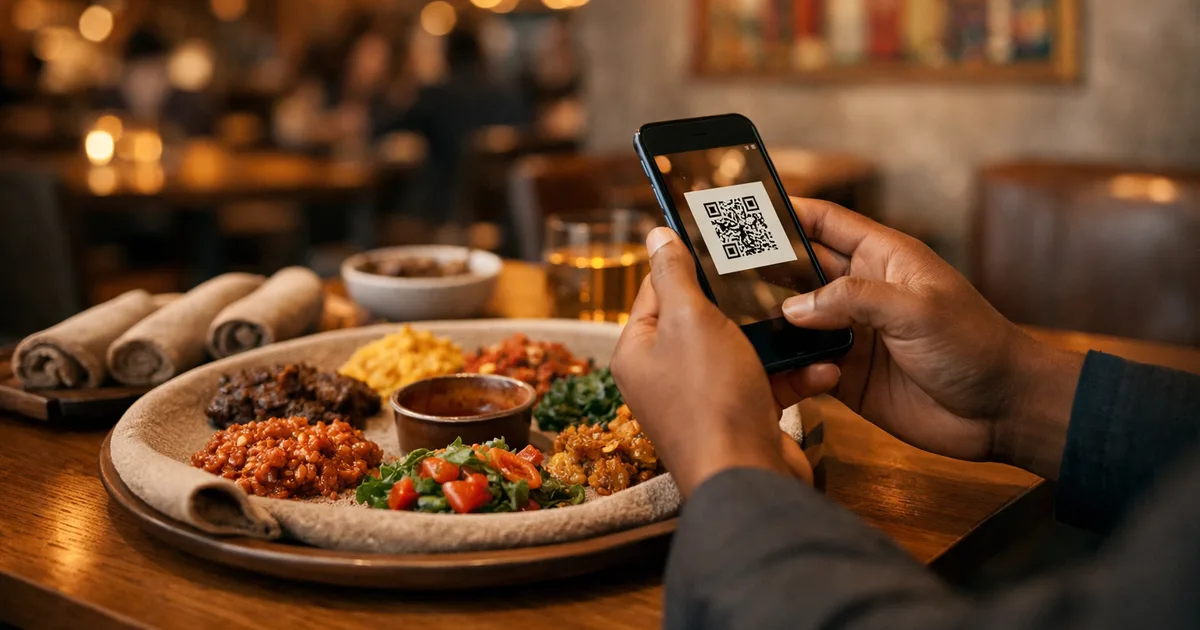
A quick definition, because the words get muddled: a QR code menu PDF is simply a QR code whose destination is a PDF document. When a guest scans it, their phone opens the PDF — the same file you’d email or print, now rendered on a 6-inch screen. That last part is the catch we’ll come back to.
If your goal is just “get my existing menu reachable by scan,” any free PDF-to-QR tool gets you there. If your goal is “give guests a menu that’s a pleasure to use and easy to keep current,” you’ll want the dynamic-menu route below. ShevaFood is built for the second goal — and you can still start from the PDF you already have.
Static vs dynamic: the choice that decides everything
For QR codes, static means the destination is locked into the code forever, and dynamic means you can change the destination at any time — even after printing. A static QR encodes the URL directly into its pattern; a dynamic QR encodes a short redirect link you control, so you can repoint it without reprinting. For a restaurant menu, dynamic is almost always the right call.
Here’s why it matters in practice. With a static QR code menu PDF, the file’s address is baked in. The day you change a price, add a special or update an allergen, you have to generate a brand-new code and reprint every table tent, sticker and poster — because the old code still points at the old file. As QR code platforms explain, a static code can’t be edited after it’s created and doesn’t collect scan statistics, while a dynamic code stays editable and trackable.
A dynamic code flips that. The printed code points to a short link you own; you change where that link goes whenever you like. Swap the PDF for an updated one, or — better — point it at a live menu page, and the same code on every table instantly reflects the change. One code, printed once, that keeps up with your menu. That alone is reason enough to never print a static menu code.
The honest caveat: dynamic QR codes usually require a small subscription, because someone has to host the redirect and the destination. The trade is worth it — a single reprint of your table cards typically costs more than months of that subscription, and you’d be reprinting every time the menu moved.
If you take one thing from this section: never print a static QR menu. The code you put on the table should be one you can still edit next season.
The PDF-on-a-phone problem: why a document isn’t a menu
Even with a dynamic code, linking to a PDF leaves one problem unsolved: a PDF is designed for paper, and a phone is not paper. When a guest scans a QR menu PDF, they get a full A4 page shrunk onto a 6-inch screen, so they pinch, zoom and drag sideways just to read a single price. Google’s own guidance notes that small font sizes “are often difficult to read on mobile devices and may require users to zoom in” — which is precisely the friction a QR menu is supposed to remove, not create.
That friction is the opposite of the effortless experience guests expect after scanning. It also quietly costs you: a menu that’s annoying to read gets skimmed, not explored, and the dishes you most want to sell never get seen. A few more limits of a static PDF behind a QR code:
- You can’t update it cleanly. Change a price and you re-export the PDF, re-upload it, and hope the code still points to the new version. With a static code, you reprint everything.
- It carries no real allergen handling. A line of small print isn’t the same as a dish a guest can tap to see its allergens. In the UK, the Food Standards Agency requires businesses to provide information for 14 named allergens — a structured menu makes that far easier to get right than a buried footnote.
- It can’t be multilingual without multiplying files. One PDF is one language. Serving tourists means juggling a separate file — and often a separate code — per language.
- It tells you nothing. A PDF can’t show you which dishes guests actually look at. A dynamic menu can.
None of this means a PDF is worthless. It means the thing behind your code should be a menu, not a document. For the wider head-to-head, our comparison of physical and digital menus lays out where each format genuinely wins.
The better path: turn the PDF into a dynamic menu
The fix isn’t to abandon your PDF — it’s to use it as the blueprint for a real digital menu. This is exactly the gap ShevaFood is built to close, and it’s where a static QR code menu PDF simply can’t follow.
- Mobile-first by default. Your menu is laid out for a phone from the first scan — no pinching, no zooming. Guests read, browse and decide comfortably, which is the whole point of putting a code on the table.
- Allergens, per dish. Tag each dish once and the allergen information shows on every guest’s screen, in their language. Change a recipe or supplier and you update it in one place. (Always confirm verbally with at-risk guests — a clear menu supports your team, it doesn’t replace them.)
- Many languages from one code. Build the menu once, switch on the languages your guests speak, and they tap a selector to read everything — dish names, descriptions, allergens, prices — in their own words. One printed code covers them all.
- Edits in seconds, forever. Because the menu is a live page behind a dynamic code, keeping it accurate all day costs nothing — protecting both your margins and your reputation.
And it stays effortless on the guest side. There’s no app to install: scanning is built into the camera on both iPhone (since iOS 11 in 2017) and Android. The guest points their phone, the menu opens in about a second — the same simple moment as a PDF, with none of the downsides.
QR code menu PDF vs a dynamic digital menu
| What guests get | QR code menu PDF | Dynamic digital menu (ShevaFood) |
|---|---|---|
| Reading on a phone | Pinch-and-zoom on an A4 document | Built for phones, readable instantly |
| Updating a price or dish | Re-export and re-upload the file | Edit once, live on every table |
| The QR code itself | Often static — reprint on changes | Dynamic — print once, never reprint |
| Allergen information | Static small print, easy to outdate | Tagged per dish, always current |
| Languages | One file (often one code) per language | Many languages from a single code |
| Insight into popular dishes | None | Built in |
| Cost to start | Free | Free, no credit card |
The takeaway isn’t “PDFs are bad.” It’s that if you’re going to put a code on every table, the thing behind it should be worth scanning. For the full, format-by-format picture of how QR menus work end to end — setup, costs, mistakes and platform choice — see our pillar guide, The Complete Guide to QR Code Menus for Restaurants.
How to convert your PDF menu to a QR code in 5 steps
You don’t need a designer or a developer, and you don’t need to pay to find out whether it works. Here’s the whole path — and at each step, the move that turns a basic PDF-to-QR job into a proper menu.
Step 1 — Get your PDF menu ready
Open your PDF and make sure it’s final: current prices, nothing sold out, the right service. Keep the file small so it loads fast on mobile data. This same PDF becomes your checklist in Step 3.
Step 2 — Choose a dynamic QR code, not a static one
Pick a generator that produces a dynamic (editable) code, where the QR points to a short link you control. Skip static codes entirely — a static QR code menu PDF is locked the moment you print it, and every future change means reprinting every code.
Step 3 — Link the code to your menu — ideally a live page
The fast route links the code straight to the PDF. The better route: instead of hiding the file, use it as a checklist and rebuild it as a live, mobile-friendly menu (this is where ShevaFood comes in), then point the code at that page. Same code, far better menu.
Step 4 — Design, download and print the code
Add a short call-to-action like “Scan for menu”, export the QR code in high resolution, and print it on table tents, stickers, an A-board or the window. One code serves your entire menu.
Step 5 — Test on a real phone, then go live
Scan the code with both an iPhone and an Android from where a guest would actually sit. Confirm it opens fast, reads without pinching, and shows the right prices. When it looks right on the smallest screen, you’re live.
For a fuller walkthrough of building the menu itself, our step-by-step guide to creating a QR code menu covers each stage in detail, and our free QR code menu generator guide shows how to do all of this at no cost.
Turn your PDF into a real QR code menu
Frequently asked questions
Upload your PDF to a QR code generator or host it at a public URL, then generate a dynamic QR code that links to it. Download the code in high resolution, print it on table tents or stickers, and test it on a phone. Better still, rebuild the PDF as a live menu page and point the code there so you can edit it anytime.
Only if you used a dynamic QR code. A dynamic code points to a short link you control, so you can swap the PDF — or repoint it to a live menu — without reprinting. A static QR code bakes the destination in permanently, so changing the menu means generating and reprinting a brand-new code on every table.
For a one-off event, a PDF behind a code is fine. For an ongoing restaurant it falls short: PDFs read badly on phones, can’t be updated cleanly, carry no per-dish allergen tags or languages, and give you no analytics. A dynamic digital menu solves all of that while staying just as easy for guests to open.
Generating a basic QR code is usually free. Dynamic codes — the editable kind you want for a menu — typically need a small subscription to host the redirect. With ShevaFood you can build a full dynamic menu and download its QR code for free, with no credit card, so you can see it on your own tables before deciding anything.
Because a PDF is laid out for paper. On a phone, the full page shrinks to fit the screen, so guests have to zoom in to read it — Google notes that small text on mobile often forces users to zoom in. A mobile-first digital menu avoids this entirely by formatting itself for the screen it’s being read on.
The bottom line
Turning a PDF menu into a QR code takes minutes — but what’s behind the code is the whole game. A static QR code menu PDF is free and fast, and it’s also hard to read on a phone, a pain to update, and silent on allergens, languages and analytics. Choose a dynamic code at the very least, so you never reprint when the menu moves — and ideally, use your PDF as the blueprint for a live menu your guests will actually enjoy.
So don’t just hide a document behind a code. Build the real thing. Create your free ShevaFood menu, import your PDF as a checklist, and have a proper QR code menu live before your next service.
Sources
- Document doesn't use legible font sizes (mobile readability) — Google — Chrome for Developers
- Scan a QR code with your iPhone camera — Apple Support
- Scan QR codes on Camera from Google (Android) — Google
- Allergen guidance for food businesses — Food Standards Agency
- Static vs. dynamic QR codes: key differences — QR Code Generator