New Feature: Show Your TikTok & TripAdvisor on Your Menu 📲
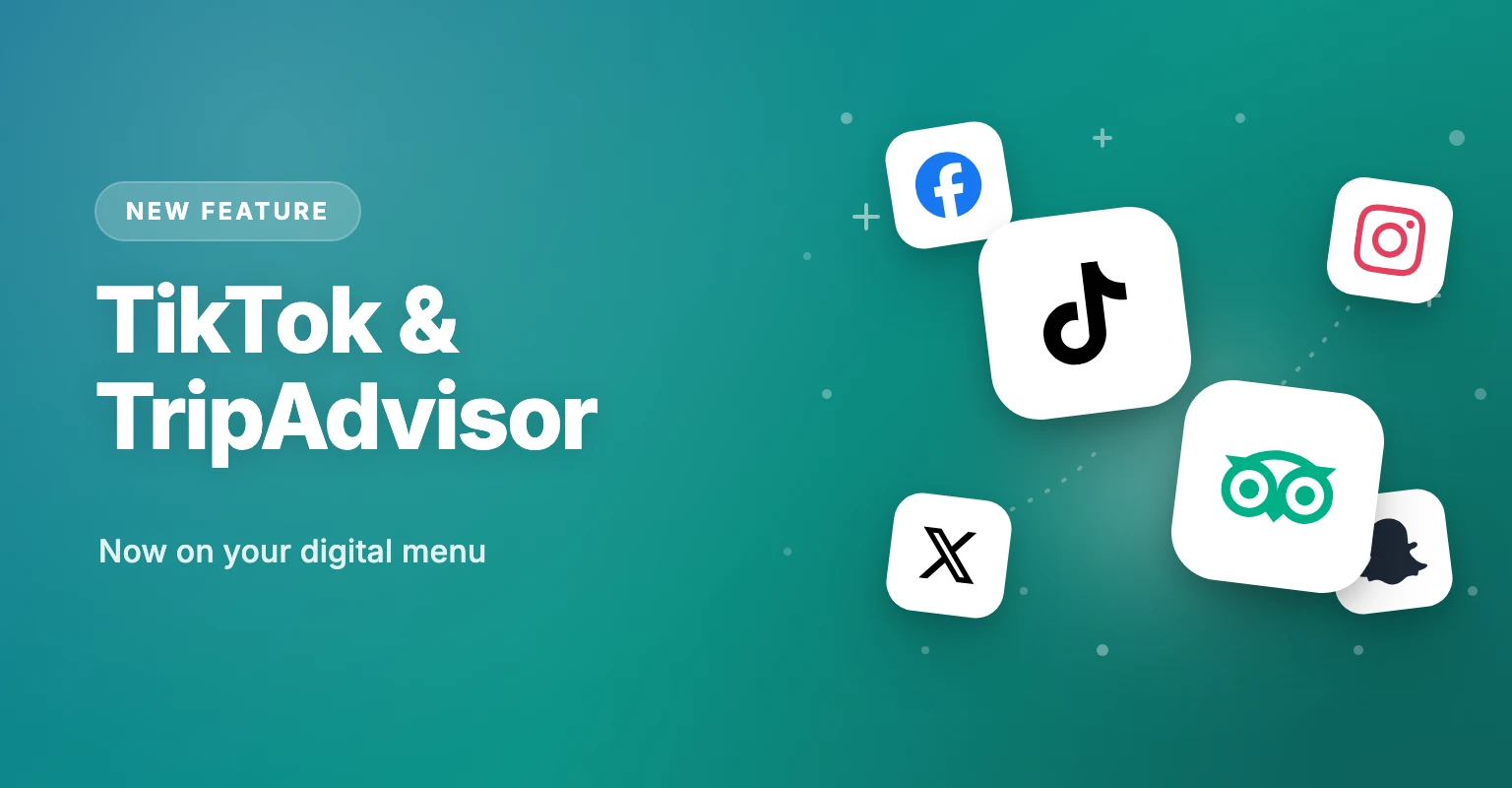
Every guest who scans your QR menu is a potential follower and reviewer. With our new social links, you can now showcase TikTok and TripAdvisor on your menu—alongside Facebook, Instagram, X and Snapchat. Add your handle once in the dashboard and a branded icon does the rest.

Turn Every Menu Scan into a Follower (and a Review)
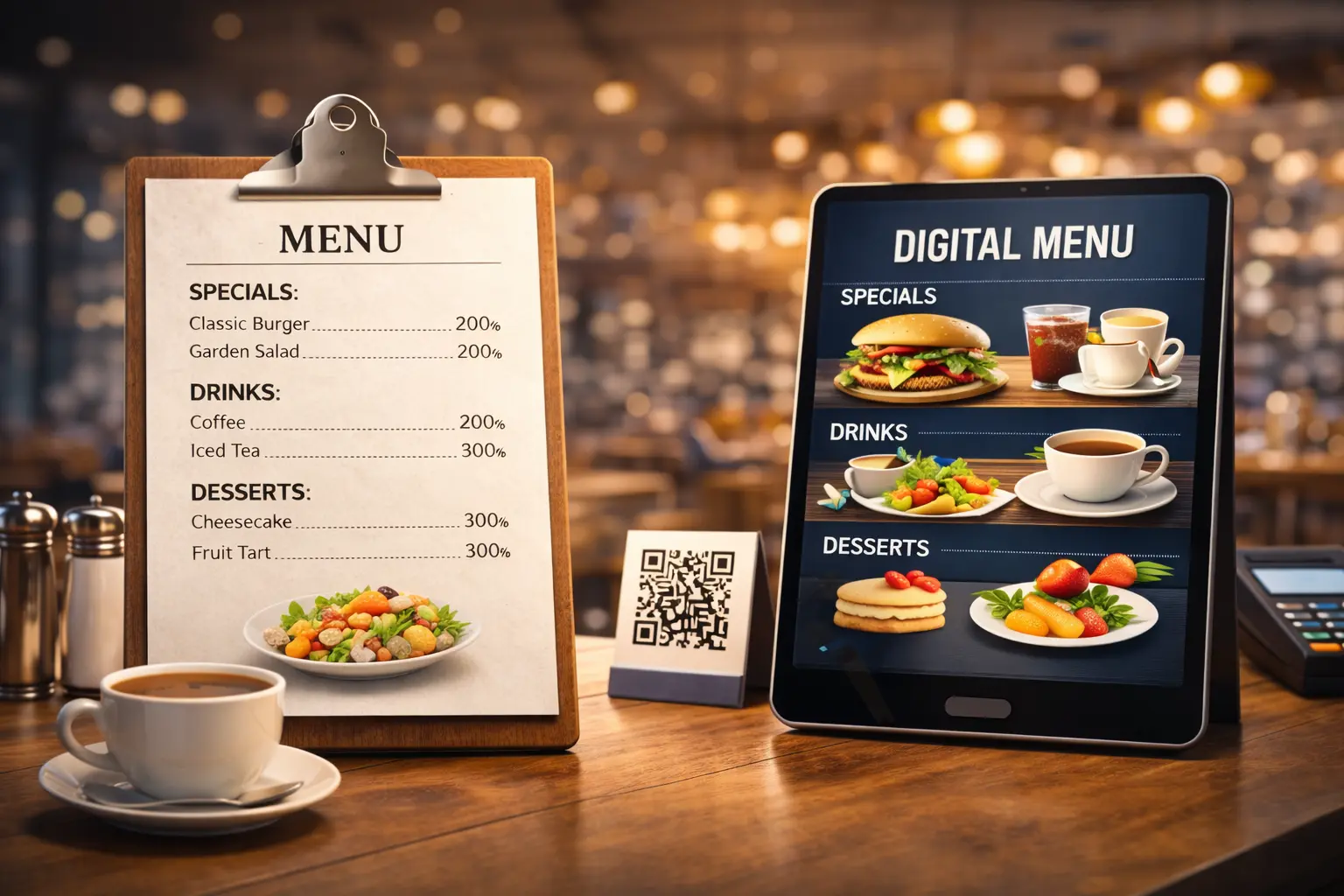
Your QR menu is the one screen every guest looks at. They’re already on their phone, already curious about your place. That’s the perfect moment to invite them to follow you on TikTok or leave a review on TripAdvisor.
That’s why we’ve expanded the social links on your ShevaFood menu. You could already show Facebook, Instagram, X and Snapchat — now you can add TikTok and TripAdvisor too.
What’s New
We added two of the most requested networks for hospitality:
- TikTok — where food goes viral. Send menu visitors straight to your videos.
- TripAdvisor — where diners decide. Point happy guests to your page and grow your reviews.
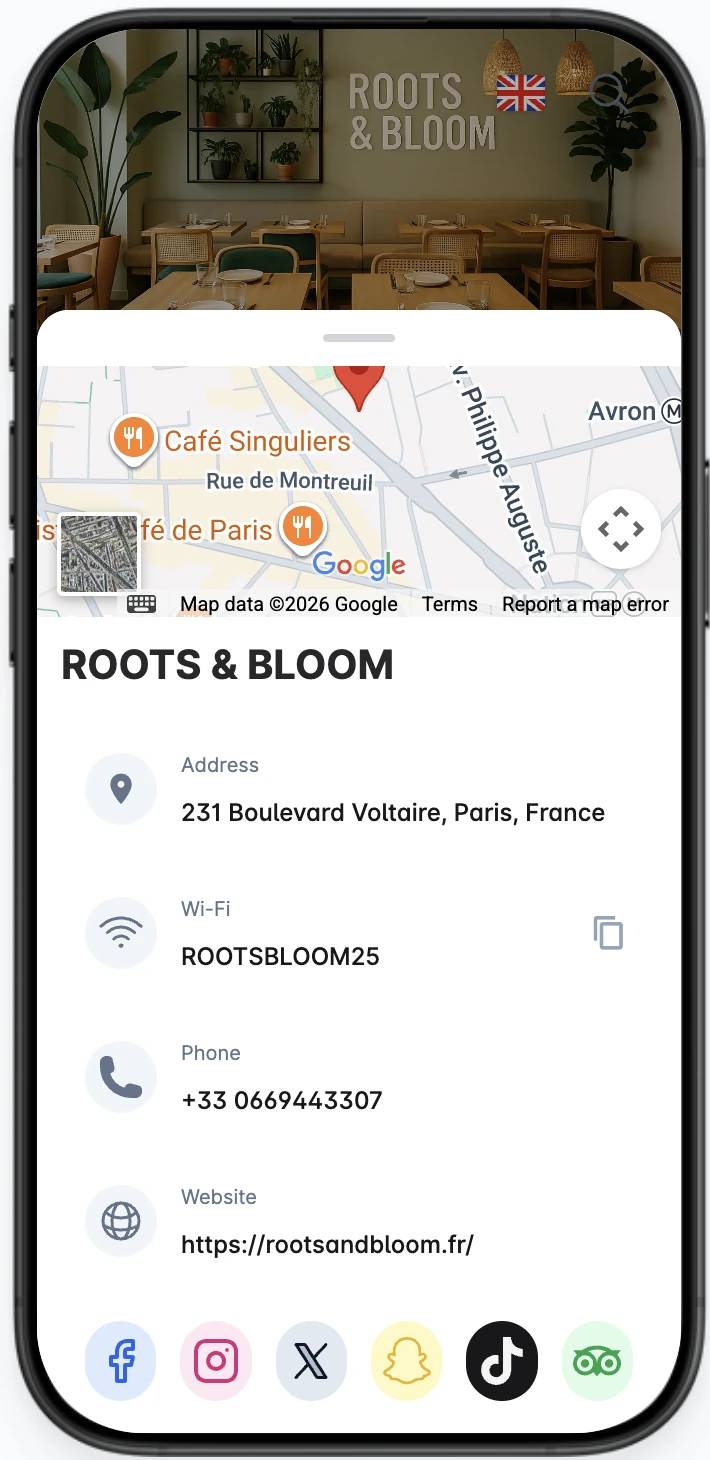
They sit right alongside Facebook, Instagram, X and Snapchat, as clean, branded icons on your public menu. No extra app, no code—just your username.
Why it matters
- More followers, for free — every scan is a chance to grow your audience.
- More reviews — make it effortless for happy guests to find your TripAdvisor page.
- One source of truth — update a handle once and it’s correct on every table, every QR code.
Step-by-Step: How to Add TikTok and TripAdvisor
It takes about two minutes. You only enter your username—ShevaFood builds the full link automatically.
Note: The exact labels in your dashboard may vary slightly as we keep improving the product, but the steps stay the same.
Step 1: Open Social Media in your dashboard
- Sign in to your ShevaFood dashboard.
- Go to Establishment.
- Open the Social Media section.
Step 2: Enter your handles
For each network you want to show, type your username next to the prefix. For TikTok, enter the name after tiktok.com/@. For TripAdvisor, paste your page path after tripadvisor.com/.
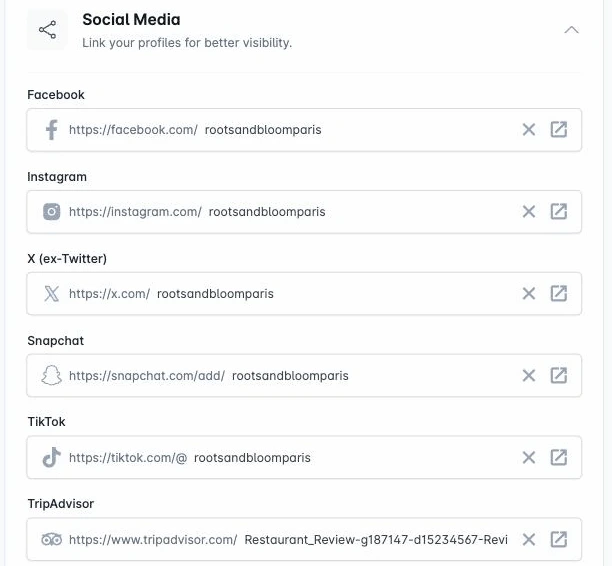
You can fill in as many—or as few—networks as you like. Empty ones simply won’t show.
Step 3: Save your changes
Click Save. Your links go live on your menu instantly—no re-publishing, no waiting.
Step 4: Customers tap the icons on your menu
On your public menu, guests open Information to see your social icons—including your new TikTok and TripAdvisor buttons—and reach your profiles in a single tap.
Frequently Asked Questions
No—just your username. ShevaFood adds the right prefix (for example tiktok.com/@) and builds the link for you.
Facebook, Instagram, X (Twitter), Snapchat, and now TikTok and TripAdvisor. Show any combination you want.
Yes. Social links are part of your ShevaFood digital menu at no extra cost.
No. Icons only appear for networks you fill in, and they live in the tidy Information panel of your menu.