New Feature: Schedule Your Menus by Time Slot (Practical Guide) 🕒
Your customer scrolls through the breakfast menu at 8pm and gets confused. With time slots, your menus appear only when they should. Here's how to set up scheduled visibility step by step — and the use cases you'll love.

Time Slots: Show the Right Menu at the Right Time
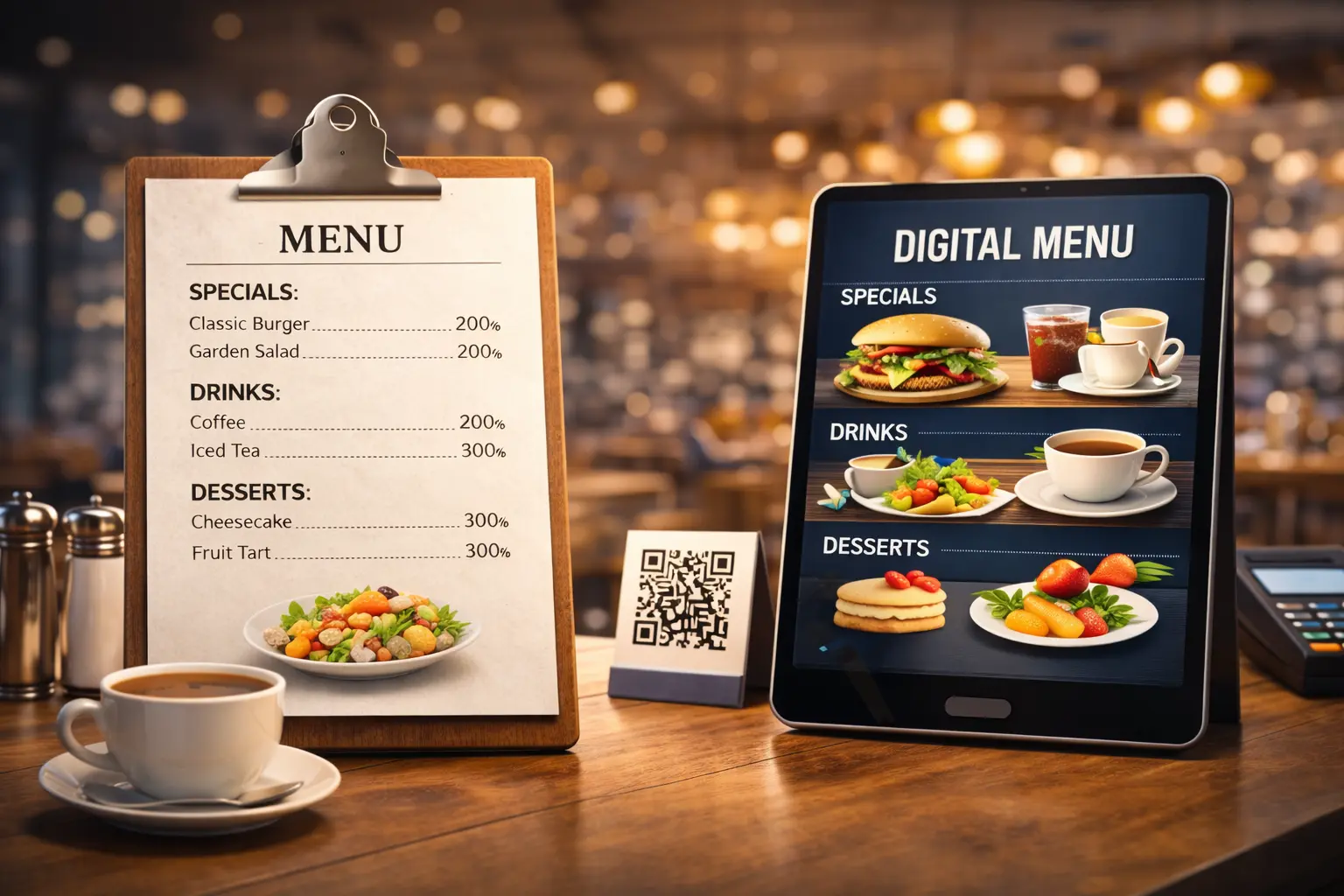
It’s 8pm. A guest sits down, scans your QR code — and lands on the breakfast menu. Pancakes and eggs Benedict at dinner. Confusion, awkward smiles, “wait, is this the right one?”
Sound familiar? With our new time slots feature, this never happens again.
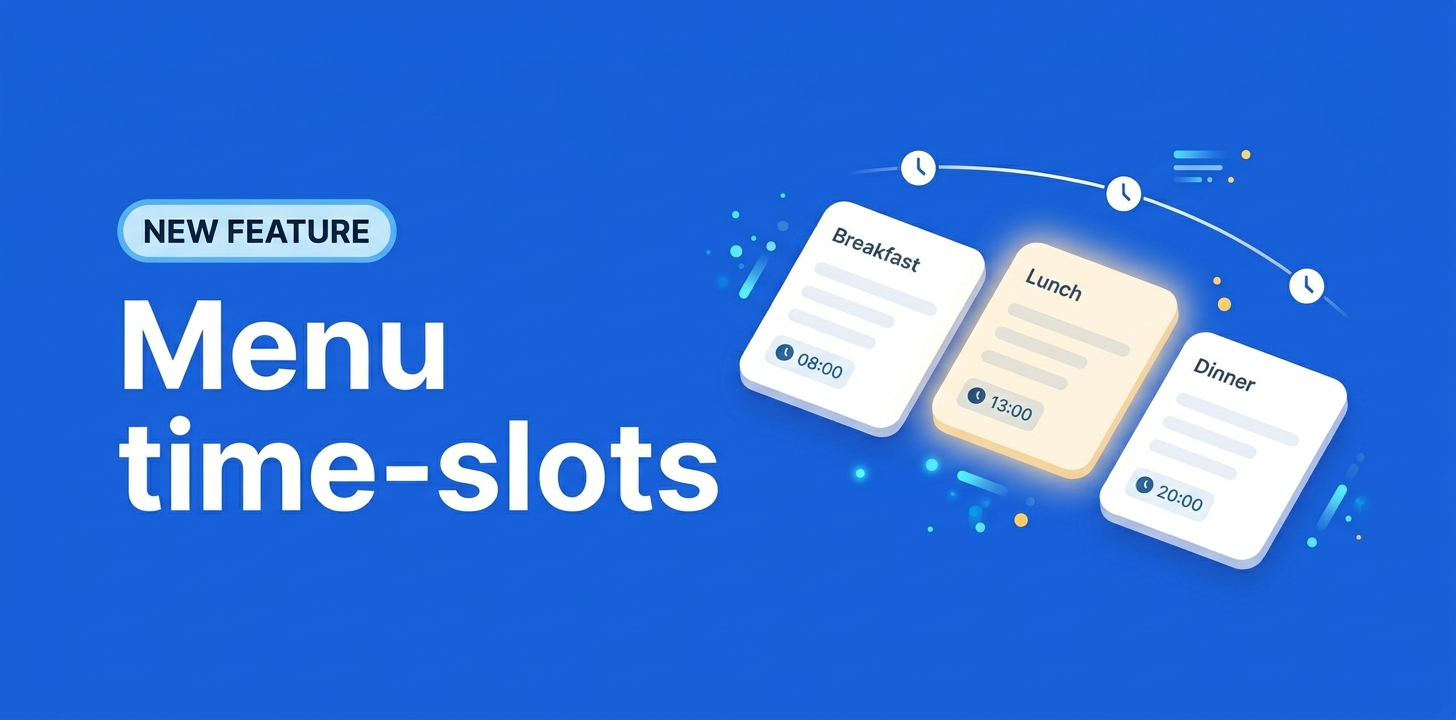
You can now schedule each menu to appear only during the hours and days you choose. Breakfast shows up in the morning. Dinner takes over in the evening. Your weekend brunch only opens on Saturday and Sunday. The card is always right — without you doing a thing once it’s set up.
This guide walks you through the configuration step by step, with concrete use cases for cafés, restaurants, bars, and hotels.
Available on all plans — FREE, LITE, and PRO. No upgrade required.
Why Time Slots Matter ⏰
The problem with always-on menus
Most restaurants run multiple services in a single establishment:
- A bakery that does breakfast, lunch sandwiches, and afternoon pastries
- A bistro with a lunch formula and a different à-la-carte dinner
- A hotel restaurant with breakfast buffet, lunch, and dinner cards
- A bar with food until 10pm and a late-night cocktail menu after
If every menu is visible all day long, your guests have to search for what’s currently being served. They scroll past dishes that aren’t available. They ask the server to clarify. Some give up and order something simpler than they wanted.
The shift with time slots
With time slots, each menu only appears during the hours you’ve defined. The customer scans, sees exactly what’s available right now, and orders without friction.
Concretely:
- Faster ordering (less scrolling, fewer questions)
- Fewer “we don’t serve that right now” moments
- A clean QR experience that mirrors what’s actually being cooked
How to Set Up a Time Slot 🛠️
The configuration takes about a minute per menu. Here’s the full flow.
Step 1: Open your menu list
- Sign in to your Shevafood dashboard.
- Go to Menus — the list of all the menus tied to your establishment.
- Find the menu you want to schedule (for example, “Breakfast” or “Brunch”).
Step 2: Open the time slot panel
- Click the 3-dot menu next to the menu you want to schedule.
- Select “Set time slots” from the action menu.
- A side panel opens with the configuration options.
Step 3: Choose the visibility mode
You have two modes:
- Always visible (default) — the menu shows up at all times. This is the behavior every existing menu has by default; you don’t need to change anything if you want a permanent menu (drinks, dessert, à-la-carte all-day).
- Hidden outside hours — the menu only appears during the days and time ranges you define. Outside those hours, it’s automatically hidden from the customer-facing QR experience.
Pick the mode that matches your service.
Step 4: Add days and hours
Once you’ve selected “Hidden outside hours”:
- Pick the days of the week when the menu should be available (e.g. Monday to Friday, or only Saturday and Sunday).
- Set the start time and end time for each day.
- You can add multiple time ranges if needed (e.g. lunch 12pm–2:30pm AND dinner 7pm–10:30pm on the same day).
Step 5: Save
Click Save. Your menu is now scheduled. From this moment, it will appear and disappear automatically based on the rules you’ve set. No further action needed.
Tip: changes apply instantly. If a customer is already viewing the menu when it goes out of its time window, they keep their current view — but the next scan won’t show it.
Real Use Cases You’ll Love 🍽️
Here’s how Shevafood owners are already using time slots in real service.
Breakfast: 7am–11am, every day
A bakery in Lyon shows its breakfast menu (pastries, viennoiseries, coffee specials) from 7am to 11am, every day. After 11am, customers automatically see the lunch menu (sandwiches, salads, quiches). Two cards, zero friction.
Brunch: Saturday & Sunday, 10am–3pm
A neighborhood spot in Madrid runs a weekend brunch only on Saturday and Sunday from 10am to 3pm. The brunch menu doesn’t appear at all on weekdays — guests who scan during the week land directly on the regular lunch card.
Dinner: Tuesday to Saturday from 7pm
A bistro is closed on Sunday and Monday. The dinner menu is set to show Tuesday through Saturday, from 7pm onward. Out of those hours? The card is invisible. No misleading the customer who passes by on a Monday evening.
Late-night bar: 10pm to 2am ✨
A cocktail bar opens its late-night menu from 10pm to 2am. Because the time range crosses midnight, the system handles the next-day wrap automatically — you set “10pm to 2am” once, and the menu stays visible from 10pm Friday through 2am Saturday morning, exactly as you’d expect.
Always-on drinks alongside time-slotted food
A hotel restaurant runs three food menus by service (breakfast, lunch, dinner) — each with its own time slot. The drinks menu stays in “Always visible” mode so guests can order a coffee or a glass of wine at any time, regardless of which food card is currently active.
This is the most common setup: one always-on permanent menu, plus two or three time-slotted service menus that rotate during the day.
Timezones: It Just Works 🌍
A natural worry: “If a customer scans my menu while traveling from another country, will they see my menus at the wrong time?”
No. Time slots are evaluated in your establishment’s local time.
A Paris café set to “breakfast 7am–11am” shows the breakfast menu when it’s 7am to 11am in Paris — even if the customer scanning is on a phone configured for Tokyo time. A Tokyo restaurant works the same way: its menus toggle at the local hour of Tokyo, regardless of where the customer’s device thinks it is.
How to verify your establishment’s timezone
- Go to Settings → Establishment.
- Check that the timezone is set correctly for your physical location.
- If you have multiple establishments (e.g. one in Paris and one in Lisbon), each has its own timezone — and its own time-slotted menus.
This makes time slots reliable for chains and groups that operate across multiple cities or countries: each location stays in sync with its own clock.
Tips for Smooth Service 💡
A few small things that make time slots even more useful in real operations.
Plan the transitions
If you serve breakfast until 11am and lunch from 12pm, what happens between 11am and 12pm? Decide intentionally:
- Set lunch to start at 11am too if you want a smooth handover
- Or accept a short gap (during which only your always-on menus, like drinks, are visible)
- Or add a “transition” menu (coffee + light bites) that bridges the slot
Use multiple ranges for split services
A common bistro pattern: lunch 12pm–2:30pm, closed in the afternoon, dinner 7pm–10:30pm. Set two ranges for the same menu (or two separate menus, one per service) — both work, choose what’s easier to maintain.
Test before you push it live
Before rolling out a new time slot to your real QR code, scan your own menu at different times of the day to confirm everything looks right. Adjust as needed — there’s no penalty for changing the schedule.
Frequently Asked Questions
Your menu stays in “Always visible” mode by default. Nothing changes, nothing breaks. Existing menus are untouched until you opt in to scheduling.
Yes, anytime. Edit the time slots whenever you want — adjust hours, swap days, switch to “Always visible” again. Changes are instant and have no impact on customers’ current sessions.
No. When a menu enters its time window, it simply appears in the QR experience. There’s no notification, no “this menu opens in 2 hours” countdown. It just shows up when it’s time, and quietly disappears when the window closes.
Yes. There’s no limit on the number of menus you can schedule. You can mix scheduled and always-on menus freely.
All plans — FREE, LITE, and PRO. Time slots are part of the core experience, no upgrade needed.
No. The QR code stays the same — it always points to your live experience. The customer who scans simply sees whichever menus are currently in their visibility window.
A Better Experience for Everyone
Time slots are one of those small features that quietly transforms day-to-day operations. The customer gets the right card without thinking. Your servers stop having to explain. Your team doesn’t have to manually swap menus between services.
It takes a minute to set up — and it pays off every single service from then on.
If you’ve been running multiple services from one establishment, this is for you. Open your dashboard, pick your most service-specific menu (breakfast, brunch, late-night), and give it a schedule. You’ll wonder how you managed without it.